
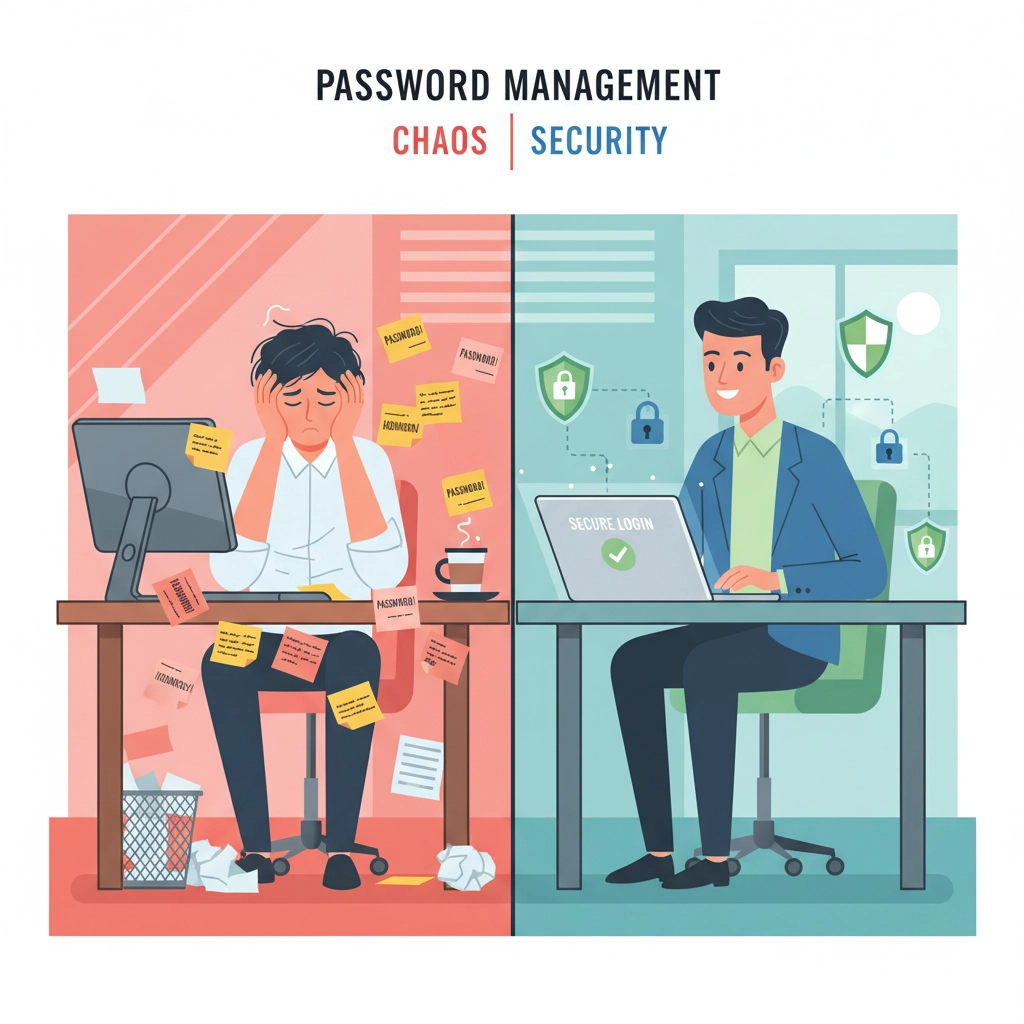
How many passwords are you juggling right now? If you're like most business owners in Northern Michigan, you probably have dozens: maybe even hundreds: of login credentials scattered across sticky notes, browser saves, and that one Excel spreadsheet you hope nobody ever finds.
Here's the reality: weak password habits are the #1 cause of data breaches, and cybercriminals are specifically targeting small and mid-sized businesses because they know we often lack the security resources of larger corporations. But here's the good news: you don't need a massive IT budget to dramatically improve your password security. You just need the right tool and a few smart strategies.
That's where Keeper Security comes in, and more importantly, that's where we're going to help you master it.
Why Password Management Isn't Optional Anymore
Let's start with a wake-up call: using "Password123!" or your company name plus the current year isn't cutting it in 2025. Cybercriminals have sophisticated tools that can crack simple passwords in seconds, not hours or days.
But beyond the obvious security risks, poor password habits are costing your business time and productivity every single day. How often does your team waste precious minutes trying to remember logins? How many support tickets could you eliminate if everyone had instant access to their credentials?
A solid password manager like Keeper doesn't just protect you: it actually makes your workday smoother and more efficient.
Getting Started: Your Keeper Security Foundation
When you first open Keeper, you might feel overwhelmed by all the options. Don't worry: we're going to walk through this step by step, focusing on what matters most for your business.
Setting Up Your Master Password
Your master password is the one password you'll actually need to remember, so make it count. Keeper recommends at least 16 characters, but here's a pro tip from our team: use a memorable phrase that's meaningful to you but impossible for others to guess.
Instead of "MyDogSpot2025!", try something like "Coffee-Tastes-Better-In-Traverse-City-Mornings!" It's long, includes varied characters, and only makes sense to you.
Your First Password Entry
Start small. Add just one login: perhaps your most critical business account. Watch how Keeper automatically captures the website, username, and password. Notice how it generates a secure note section where you can add recovery questions or additional context.
This is your foundation. Every password you add from here makes your digital life more secure and organized.
Creating Passwords That Actually Protect You
Here's where Keeper really shines. Instead of wracking your brain for a "secure" password, let Keeper generate one for you.
Using Keeper's Password Generator
When creating a new account or updating an existing password, click on Keeper's generator tool. Set it to create passwords with at least 16 characters (we recommend 20+ for critical accounts), and include uppercase letters, lowercase letters, numbers, and symbols.
The generated password might look like "K#8mP$2nQ@7xR!9wE4uI" – completely random and virtually uncrackable. The beauty? You'll never need to remember it.
The Passphrase Alternative
For accounts where you might occasionally need to type the password manually, consider Keeper's passphrase generator. It creates combinations like "Mixture-Pie-Met-State-Planning6" – easier to type when needed, but still incredibly secure.
Organizing Your Digital Vault Like a Pro
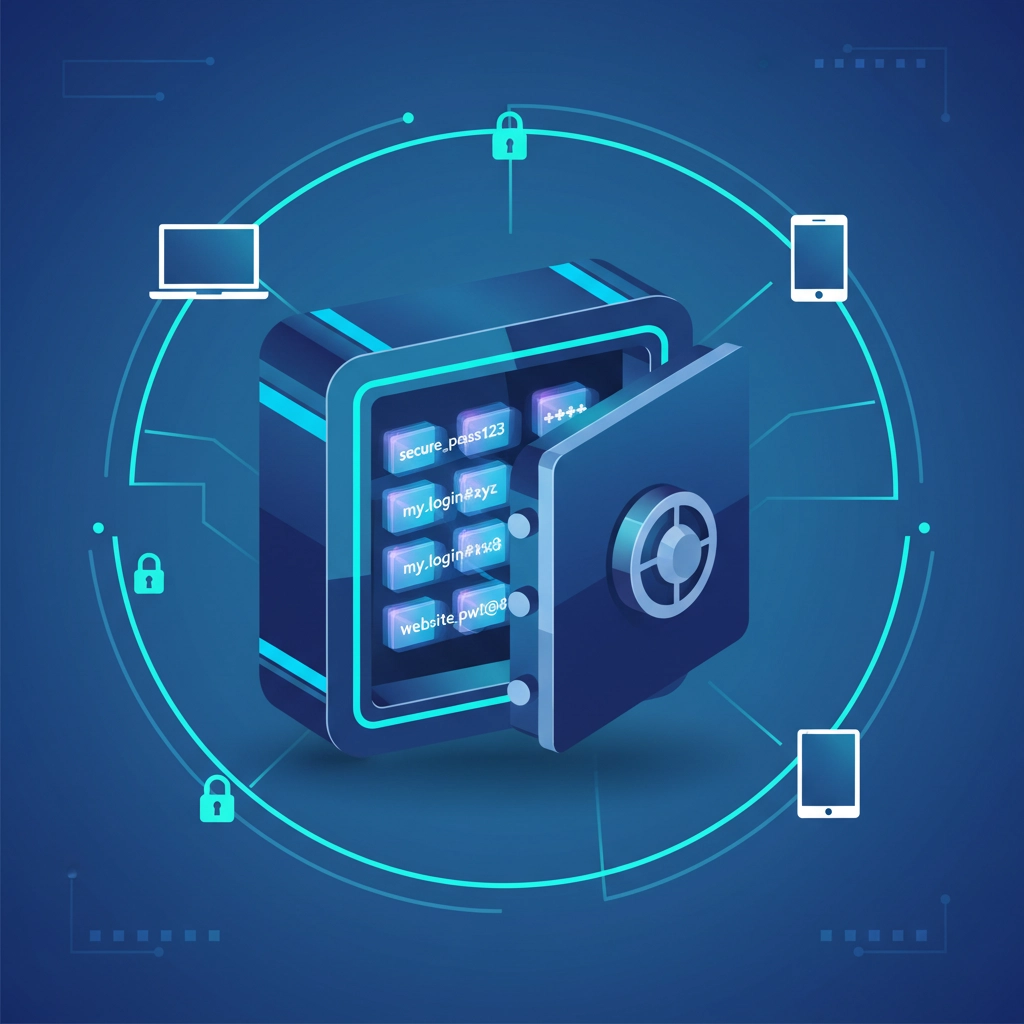
A disorganized password manager is almost as bad as no password manager at all. Here's how to set up your Keeper vault so you can find what you need instantly.
Creating Logical Folders
Start with broad categories that match how you think about your business:
- Banking & Financial
- Social Media & Marketing
- Software & Subscriptions
- Client Portals
- Internal Systems
- Personal (for those inevitable personal accounts you manage at work)
Using Tags Effectively
Tags are your secret weapon for quick searches. Consider tags like:
- "Critical" for accounts that would shut down operations if compromised
- "Shared" for credentials your team needs access to
- "Monthly" or "Annual" for accounts you access infrequently but need to find quickly
Adding Helpful Notes
Don't just store the password: add context. Include security questions and answers, backup codes, or notes about when you last updated the account. Future you will thank present you.
Sharing Passwords Safely with Your Team
One of the biggest challenges for growing businesses is securely sharing access without compromising security. Keeper makes this surprisingly straightforward.
Setting Up Shared Folders
Create shared folders for accounts your entire team needs: think company social media accounts, shared software subscriptions, or client portals. When you add team members to these folders, they get automatic access to all the credentials inside.
Individual Sharing for Sensitive Accounts
For highly sensitive accounts, share individual records with specific people rather than using folders. This gives you granular control over who sees what, and you can revoke access instantly if someone leaves your team.
The Emergency Access Feature
Here's a feature that could save your business: emergency access. Designate trusted team members who can access critical accounts if something happens to you. It's business continuity planning made simple.

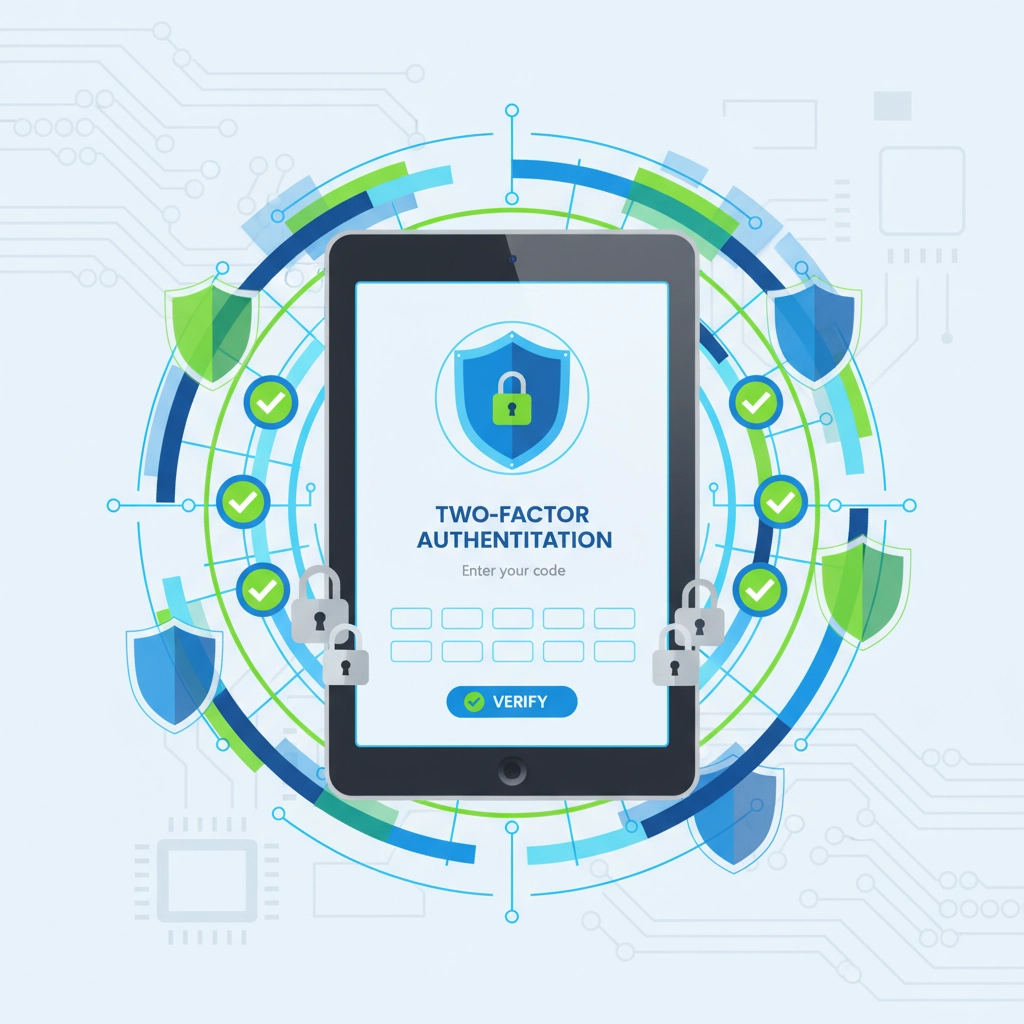
Two-Factor Authentication: Your Security Superpower
If you're not using two-factor authentication (2FA) everywhere possible, you're leaving money on the table, literally. Even if someone steals your password, 2FA stops them cold.
Setting Up 2FA in Keeper
Keeper can store your 2FA codes right alongside your passwords. When you enable 2FA on any account, choose "authenticator app" as your method, then scan the QR code with Keeper. Now your 2FA codes generate automatically within Keeper.
Backup Codes Matter
Always download and store backup codes when setting up 2FA. Keep them in Keeper's secure notes section. These codes are your lifeline if your primary device fails.
Protecting Your Keeper Account
Don't forget to enable 2FA on your Keeper account itself. This is non-negotiable for business use. We recommend using both an authenticator app and backup SMS as your secondary options.
Advanced Features That Save You Time
Once you've mastered the basics, these advanced features will make you wonder how you ever managed without them.
KeeperFill Browser Extension
Install the KeeperFill browser extension and watch magic happen. Visit any login page, and Keeper automatically offers to fill your credentials. No more typing, no more guessing: just instant, secure access.
Security Audits
Keeper's BreachWatch feature continuously monitors the dark web for compromised credentials. If any of your accounts appear in a data breach, you'll know immediately and can take action.
Password Health Reports
Regular security audits show you weak, reused, or compromised passwords. Schedule monthly reviews to gradually strengthen your entire digital presence.
How NTS Supports Your Password Security Journey
You don't have to figure this out alone. As your local IT partner, we're here to help you implement Keeper Security in a way that makes sense for your specific business needs.
Setup and Training
We'll walk you and your team through the initial setup, ensuring everyone understands how to use Keeper effectively from day one. No technical background required: we explain everything in plain English.
Ongoing Support
Questions about sharing a new account? Need help with 2FA setup? Can't find that one login you know you saved? Just give us a call. Our support team knows Keeper inside and out.
Integration with Your Existing Systems
We'll help you integrate Keeper with your current workflow, ensuring it enhances rather than disrupts your daily operations.
Making the Switch: Easier Than You Think
Moving from your current password system to Keeper might seem daunting, but it doesn't have to happen overnight. Start with your most critical accounts, then gradually migrate everything else. Most businesses are fully transitioned within a few weeks.
Import Your Existing Passwords
Keeper can import passwords from most browsers and other password managers. We'll help you with this process to ensure nothing gets lost in translation.
Team Rollout Strategy
For businesses with multiple team members, we recommend a gradual rollout. Start with key personnel, work out any kinks, then expand to the entire team.
Ready to Transform Your Password Security?
Password management isn't just about security: it's about efficiency, peace of mind, and protecting the business you've worked so hard to build. With Keeper Security and NTS backing you up, you're not just getting a password manager; you're getting a complete security strategy tailored to Northern Michigan businesses.
Don't let weak passwords be your business's weakest link. Contact our team today for a free security assessment, and let's get your password management sorted once and for all. We'll show you exactly how Keeper can work for your specific situation, with no pressure and no technical jargon: just practical solutions that make sense for your business.
Remember: in cybersecurity, the best defense is often the simplest one implemented consistently. Keeper Security, properly configured and actively used, is exactly that kind of defense.