
Running a small business in Northern Michigan means juggling countless files, documents, and spreadsheets every day. Whether you're managing client contracts in Petoskey, tracking inventory in Gaylord, or coordinating projects between Cheboygan and Alpena, you need a reliable way to store, share, and secure your important business files.
That's where OneDrive comes in. If you're already using Microsoft 365 for your business, you've got a powerful cloud storage solution right at your fingertips, you just might not know how to use it effectively yet.
What Exactly Is OneDrive for Business?
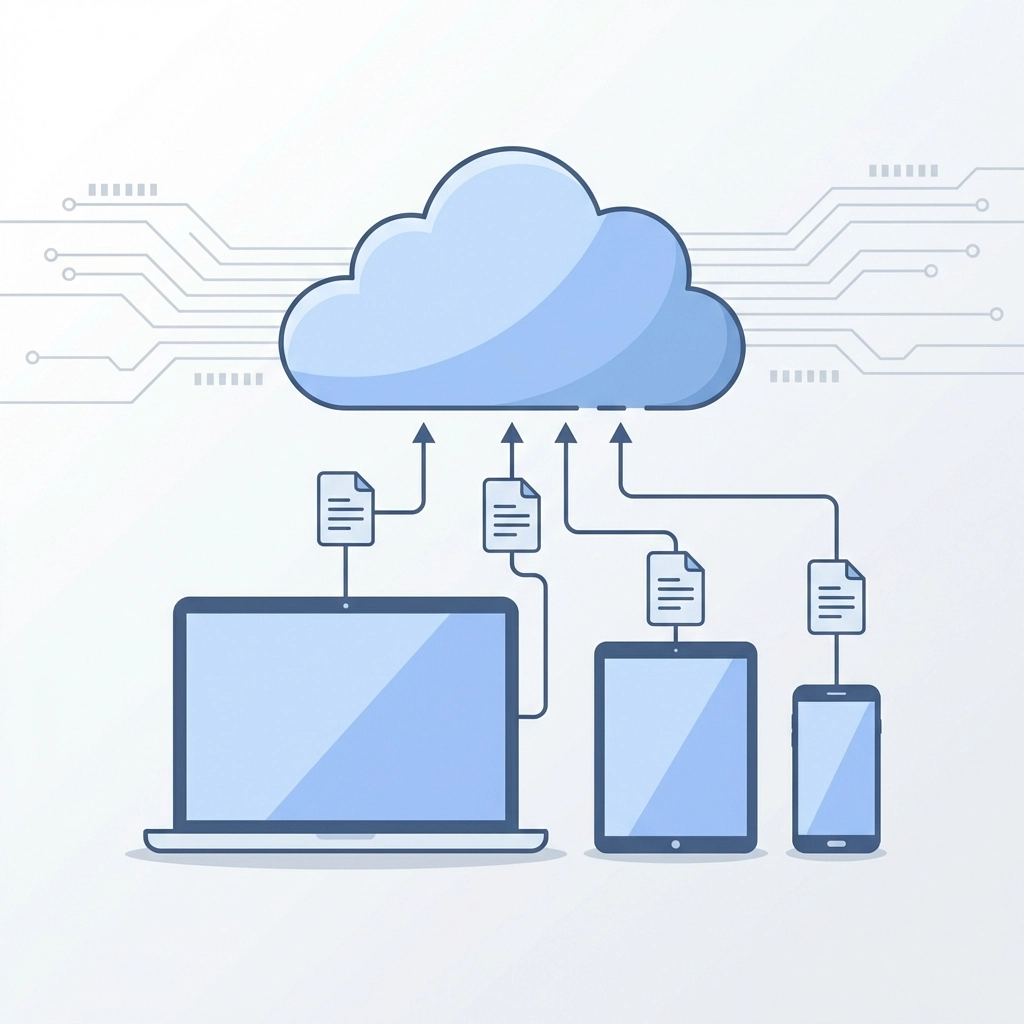
Think of OneDrive as your business filing cabinet in the cloud. Instead of keeping all your documents locked away on one computer (where they're vulnerable to crashes, theft, or that dreaded coffee spill), OneDrive stores everything securely online. You can access your files from anywhere, your office, home, or that coffee shop in downtown Petoskey, as long as you have an internet connection.
The best part? OneDrive comes included with most Microsoft 365 business plans, giving you 1 TB of storage per user. That's enough space for roughly 250,000 photos or 16,000 hours of music, more than enough for even the most document-heavy businesses.
Getting Your OneDrive Set Up (It's Easier Than You Think)
Setting up OneDrive doesn't require a computer science degree. Here's how to get started in just a few minutes:
Step 1: Access OneDrive Online
Head to microsoft365.com and sign in with your business Microsoft 365 account. Look for the app launcher (those nine dots in the upper left) and click on OneDrive. Boom, you're in your cloud storage space.
Step 2: Install the Desktop App
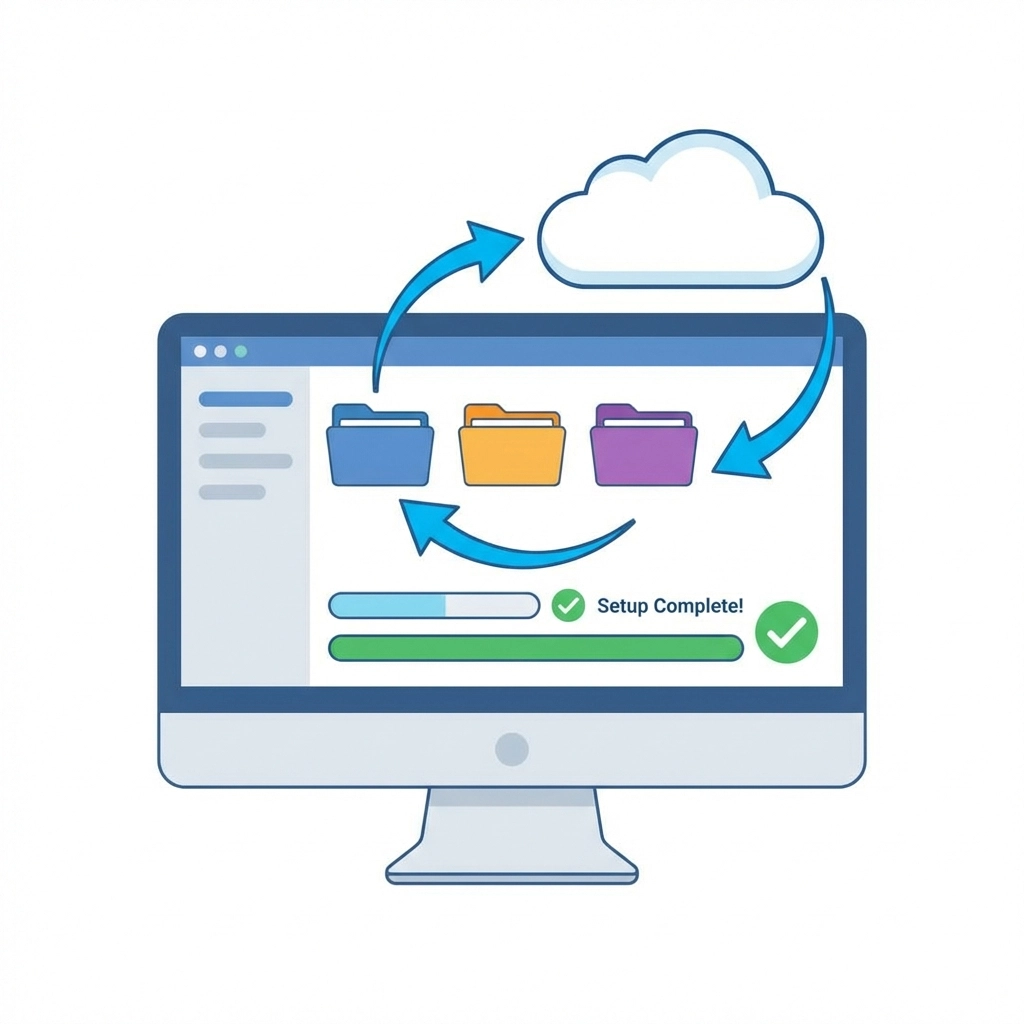
For the smoothest experience, install the OneDrive application on your computer. Search for "OneDrive" in your Start menu, sign in with your Microsoft 365 credentials, and follow the setup prompts. Once installed, you'll see a OneDrive folder in File Explorer that automatically syncs with your cloud storage.
Step 3: Choose Your Sync Strategy
You don't have to sync everything to every device. Be strategic about which folders you sync to each computer, your accounting files might only need to sync to your office computer, while sales materials should be available everywhere.
Navigating Your OneDrive Like a Pro
Once you're set up, take a moment to familiarize yourself with OneDrive's layout. The left sidebar is your command center:
- Files: Your main storage area for all documents
- Recent: Files you've worked on recently (perfect for jumping back into yesterday's project)
- Shared: Files that others have shared with you, plus files you've shared with others
- Recycle Bin: Deleted files hang out here, so you can recover them if needed
The toolbar at the top gives you quick access to essential functions like creating new files, uploading documents from your computer, and checking who has access to specific files.
File Sharing Made Simple (No More Email Attachments)
Here's where OneDrive really shines for small businesses. Instead of sending large files via email (and hoping they don't bounce back), you can share files directly from OneDrive.
Internal Team Sharing
Need to share a project folder with your team? Right-click the folder, select "Share," and enter your teammates' email addresses. They'll get a link that takes them directly to the shared folder. Any changes they make sync automatically: no more wondering if you're looking at the latest version.
Client Collaboration
Working with clients outside your organization? Create a shared folder specifically for each client project. You control who can view, edit, or download files, keeping sensitive information secure while making collaboration seamless.
Quick Link Sharing
For one-off file sharing, use the "Copy Link" option. This creates a shareable link you can send via email, text, or your preferred communication method. You can set the link to expire after a certain date for added security.
Security Tips That Won't Slow You Down
Security doesn't have to be complicated. Here are straightforward ways to keep your OneDrive files safe:
Use Strong Sharing Permissions
When sharing files, choose "Specific people" instead of "Anyone with the link" whenever possible. This ensures only intended recipients can access your documents.
Regular Permission Audits
Every few months, review who has access to your shared files. Former employees, completed client projects, and old contractors don't need ongoing access to your business documents.
Enable Two-Factor Authentication
This adds an extra layer of protection to your Microsoft 365 account. Even if someone gets your password, they can't access your files without the second verification step.
Monitor File Activity
OneDrive shows you when files are accessed, modified, or shared. Keep an eye on this activity, especially for sensitive documents.

Smart File Organization for Northern Michigan Businesses
Whether you're running a tourism business in Petoskey or a manufacturing company in Alpena, good file organization saves time and reduces stress.
Create a Logical Folder Structure
Start with broad categories (Clients, Finance, HR, Marketing) and create subfolders as needed. Avoid going more than 3-4 levels deep: overly complex folder structures become hard to navigate.
Use Consistent Naming Conventions
Develop a system for naming files and stick to it. For example: "2026-01-Client Name-Contract" or "Marketing-Q1-Budget-2026". This makes files easier to find later.
Archive Completed Projects
Create an "Archive" folder for completed projects or old files you need to keep but don't access regularly. This keeps your active workspace clean while preserving important documents.
Backup and Recovery: Your Safety Net
One of OneDrive's biggest advantages is automatic backup. Your files are stored securely in Microsoft's cloud infrastructure, which means they're protected against local disasters like fires, floods, or hardware failures.
Version History
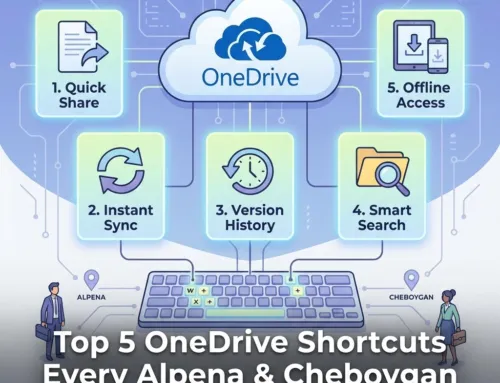
OneDrive keeps versions of your files, so you can restore previous versions if someone accidentally overwrites important changes. This feature has saved countless businesses from major headaches.
Offline Access
Mark important files and folders for offline access. This ensures you can work even when internet connectivity is spotty: useful when you're traveling between Northern Michigan locations.
Recycle Bin Recovery
Deleted files aren't immediately gone forever. Check your OneDrive recycle bin if you need to recover something. Files typically stay there for 30 days.
Common OneDrive Mistakes to Avoid
Learning from others' mistakes is always smart:
Don't Sync Everything Everywhere
Your reception computer doesn't need access to your financial files. Be selective about what syncs to each device.
Avoid Deep Folder Nesting
Folders buried six levels deep are hard to find and can cause sync issues. Keep it simple.
Don't Ignore Storage Limits
While 1 TB is generous, media-heavy businesses can hit limits. Monitor your usage and clean up unnecessary files regularly.

Integrating OneDrive with Your Daily Workflow
The real magic happens when OneDrive becomes part of your natural workflow:
Work Directly from OneDrive
Open and edit files directly in OneDrive using Office Online. Changes save automatically, and others can see updates in real-time.
Use Mobile Apps
The OneDrive mobile app lets you access files, scan documents, and share information when you're away from your desk.
Combine with Teams
If you're using Microsoft Teams, integrate your OneDrive files into team conversations for seamless collaboration.
Getting Professional Help When You Need It
While OneDrive is designed to be user-friendly, every business has unique needs. If you're struggling with setup, security configurations, or integration with your existing systems, don't hesitate to reach out for professional guidance.
Northern Michigan businesses often find that a few hours with an IT professional can save weeks of trial and error. Whether you need help with initial setup, user training, or ongoing support, local IT experts understand the specific challenges of running a business in our region.
Ready to Transform Your File Management?
OneDrive isn't just about storage: it's about making your business more efficient, collaborative, and secure. Small businesses across Petoskey, Gaylord, Cheboygan, and Alpena are already using these tools to streamline their operations and improve their bottom line.
The question isn't whether you can afford to implement proper file management: it's whether you can afford not to. With cyber threats increasing and remote work becoming more common, secure, accessible file storage isn't a luxury; it's a necessity.
Want to explore how OneDrive can specifically benefit your Northern Michigan business? Contact NTS today for a free assessment. We'll help you design a file management strategy that fits your unique needs and gets your team collaborating more effectively than ever.
Remember, the best file management system is the one your team actually uses. Start simple, be consistent, and gradually incorporate more advanced features as your comfort level grows. Your future self will thank you when you can find any document in seconds, share files effortlessly with clients, and sleep better knowing your business data is secure and backed up.