

Are you tired of clicking through endless menus in OneDrive just to share a file or move documents around? If you're a busy professional in Alpena or Cheboygan, you know every minute counts in your workday. Whether you're managing client files at your downtown office or collaborating with team members across Northern Michigan, mastering these five OneDrive shortcuts will transform how you handle your digital files.
These keyboard shortcuts aren't just time-savers: they're productivity game-changers that can help you work more efficiently with Microsoft 365. Let's dive into the shortcuts that will make your OneDrive experience smoother and faster.
Why OneDrive Shortcuts Matter for Northern Michigan Businesses
Before we jump into the specific shortcuts, let's talk about why this matters. In today's fast-paced business environment, especially in smaller communities like Alpena and Cheboygan, efficiency can make or break your competitive edge. When you're spending less time navigating through OneDrive menus, you're spending more time focusing on what really matters: serving your clients and growing your business.
OneDrive has become the backbone of file management for countless Northern Michigan businesses using Microsoft 365. But are you using it to its full potential? Most professionals only scratch the surface of what OneDrive can do, missing out on simple shortcuts that could save hours each week.
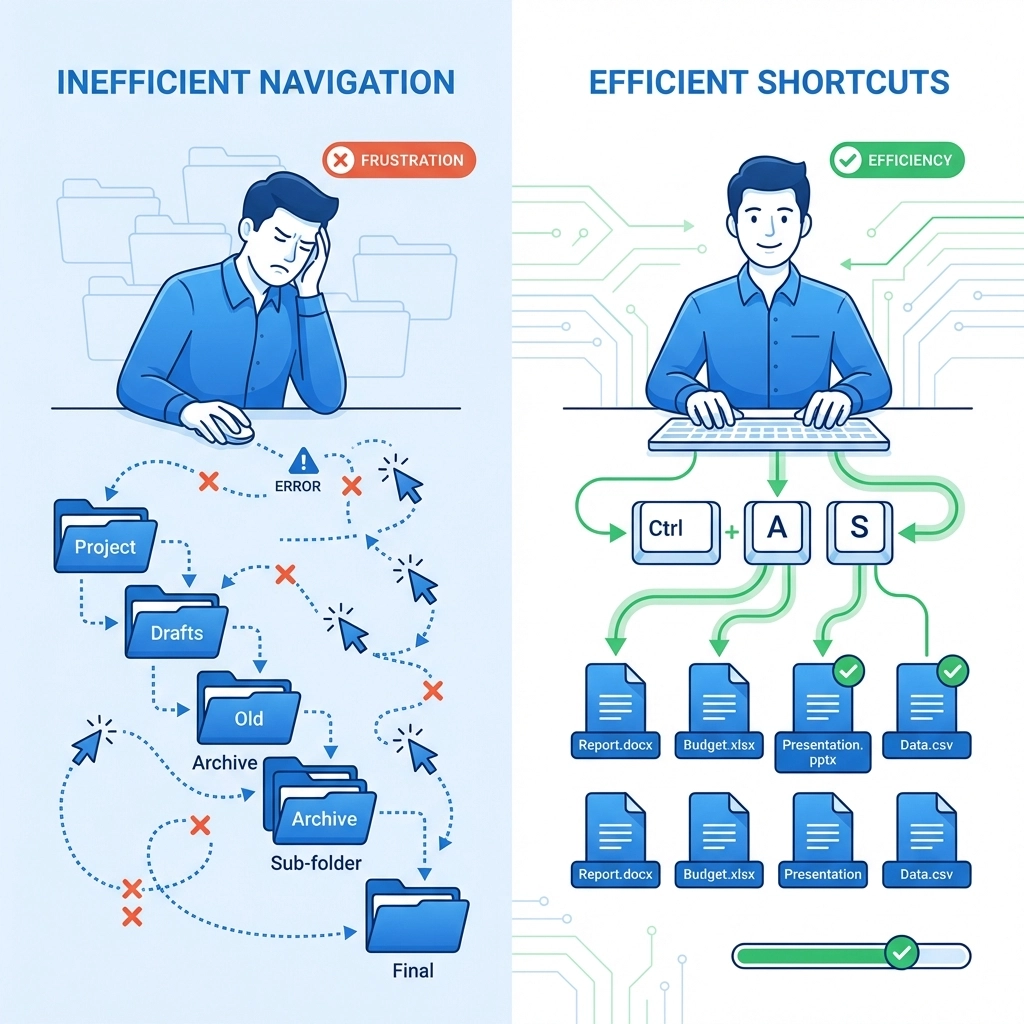
Shortcut #1: Ctrl + A – Select All Items
The first shortcut every Alpena and Cheboygan professional should master is Ctrl + A. This universal shortcut selects all items in your current OneDrive folder, making bulk operations a breeze.
When to Use This Shortcut
Imagine you're preparing for a client presentation and need to move dozens of related files into a new folder. Instead of clicking each file individually while holding Ctrl, simply press Ctrl + A to select everything at once. This is particularly useful when you're:
- Moving multiple project files to archive folders
- Copying entire folders for backup purposes
- Deleting temporary files after a project completion
- Organizing quarterly reports or financial documents
Pro Tip for Maximum Efficiency
After selecting all items with Ctrl + A, you can immediately follow up with other shortcuts. For example, Ctrl + A followed by Ctrl + C will copy everything, or Delete will remove all selected items. This combination approach can turn a 10-minute organizational task into a 30-second operation.
Shortcut #2: Ctrl + C and Ctrl + V – Copy and Paste Like a Pro
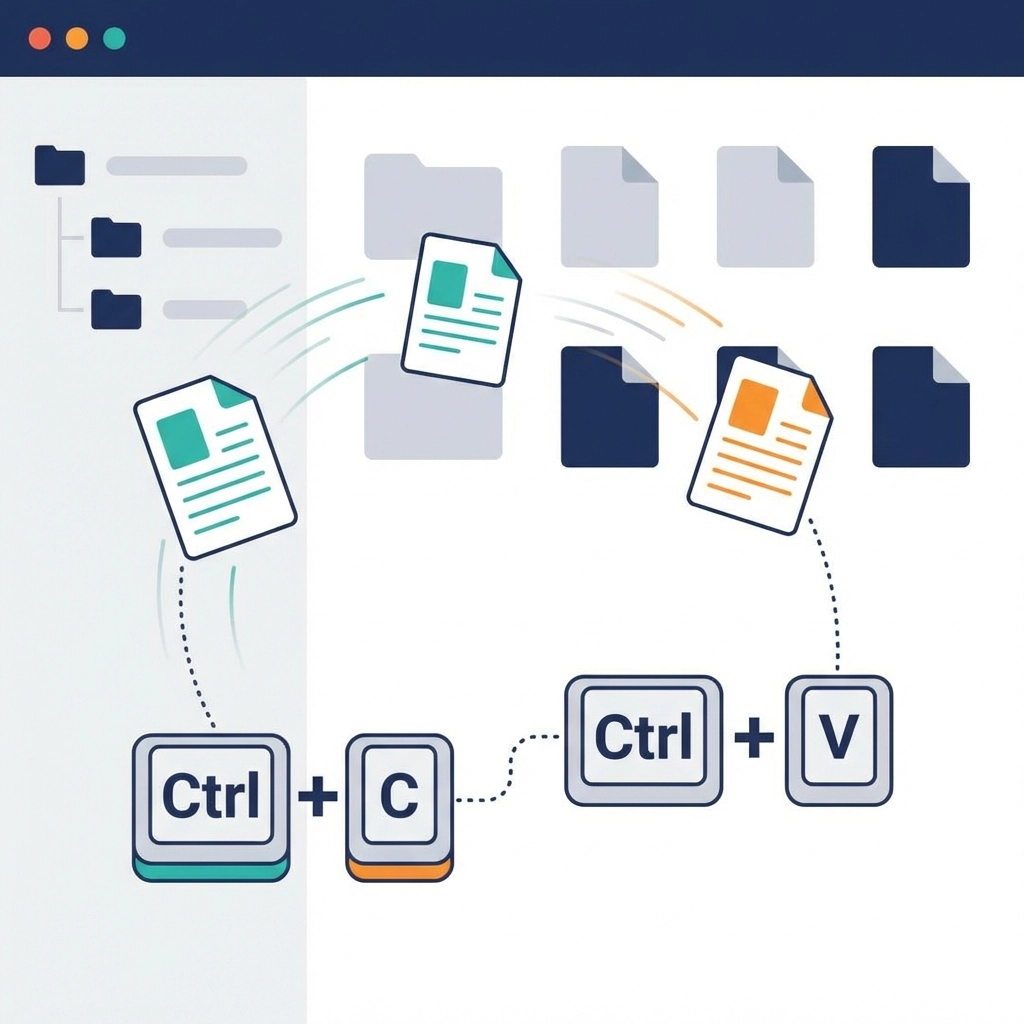
The classic copy and paste combination (Ctrl + C for copy, Ctrl + V for paste) works seamlessly in OneDrive, but many professionals don't realize how powerful this can be for file management.
Smart Copy and Paste Strategies
This shortcut duo shines when you need to:
- Duplicate template files for new clients
- Create backup copies of important documents
- Share files between different OneDrive folders
- Transfer files from your local computer to OneDrive
Real-World Application
Let's say you're a consultant in Cheboygan working with multiple clients. You have a standard project template that needs to be customized for each new engagement. Select your template folder, press Ctrl + C, navigate to your client's folder, and press Ctrl + V. Instantly, you have a copy ready for customization without affecting the original template.
Shortcut #3: S – Instant File Sharing
Here's where OneDrive really shines for collaboration, and the S shortcut is your gateway to instant sharing. Simply select any file or folder and press S to open the sharing dialog immediately.
Why This Matters for Northern Michigan Teams
In smaller business communities like Alpena, collaboration often happens across different locations and time zones. The S shortcut removes the friction from file sharing, making it easy to:
- Share meeting documents with remote team members
- Provide clients with instant access to project files
- Collaborate with vendors and contractors efficiently
- Send large files that won't fit in email
Best Practices for Secure Sharing
When you press S, OneDrive gives you several sharing options. For sensitive business documents, always:
- Set expiration dates for shared links
- Choose "Specific people" instead of "Anyone with the link"
- Review and adjust permissions (view-only vs. edit access)
- Monitor who has access through OneDrive's sharing management tools
Shortcut #4: Ctrl + S – Quick Downloads for Offline Access
The Ctrl + S shortcut downloads selected files directly to your computer, which is essential for Alpena and Cheboygan professionals who might need offline access during travel or when internet connectivity is spotty.
Strategic Offline Planning
Northern Michigan's beautiful but sometimes remote locations mean reliable internet isn't always guaranteed. Use Ctrl + S to prepare for:
- Client meetings in areas with poor cellular coverage
- Working from remote locations like cabins or cottages
- Creating local backups of critical documents
- Preparing presentations for off-site venues

Organizing Your Downloads
When you use Ctrl + S, files typically go to your Downloads folder. Consider creating a dedicated "OneDrive Downloads" folder to keep these files organized and easily accessible.
Shortcut #5: F5 – Refresh for Real-Time Collaboration
The F5 refresh shortcut ensures you're always seeing the most current version of your OneDrive files. This is particularly important when multiple team members are working on shared documents.
When Refresh Really Matters
Press F5 regularly when you're:
- Collaborating on documents with team members in real-time
- Waiting for files that colleagues are uploading
- Troubleshooting sync issues between devices
- Preparing for meetings to ensure you have the latest file versions
Avoiding Version Conflicts
In busy Alpena and Cheboygan offices, version conflicts can cause serious headaches. Regular use of F5 helps prevent the frustration of working on outdated files or missing important updates from team members.
Bonus Shortcuts for Power Users
While our main five shortcuts will handle 90% of your OneDrive needs, here are two additional shortcuts that can boost your productivity even further:
F2 – Rename Files and Folders Instantly
Select any file or folder and press F2 to rename it immediately. This eliminates the need to right-click and navigate through context menus.
Esc – Cancel Operations and Close Pop-ups
Made a mistake or want to cancel an operation? Esc is your friend. It closes sharing dialogs, cancels uploads, and gets you back to your file view quickly.

Measuring Your Productivity Gains
After implementing these shortcuts into your daily routine, you'll likely notice significant time savings. Many Northern Michigan professionals report saving 15-20 minutes daily just from more efficient OneDrive navigation. Over a year, that's roughly 65 hours: more than a full work week: that you can redirect toward revenue-generating activities.
Common Mistakes to Avoid
As you start using these shortcuts, watch out for these common pitfalls:
- Rushing through selections: Always double-check what you've selected before performing bulk operations
- Forgetting to refresh: Remember to press F5 before important collaborative work
- Over-sharing: The S shortcut makes sharing so easy that you might share too broadly: always review your sharing settings
Integration with Your Current Workflow
These OneDrive shortcuts work best when they're integrated into your existing Microsoft 365 workflow. If you're already using keyboard shortcuts in Outlook or Teams, adding these OneDrive shortcuts will feel natural and create a more cohesive, efficient work experience.
For Alpena and Cheboygan businesses looking to optimize their entire Microsoft 365 setup, these shortcuts are just the beginning. Proper IT support can help identify additional efficiency opportunities across your entire technology stack.
Getting Started Today
Ready to transform your OneDrive experience? Start with just one or two shortcuts and practice them for a week. Most professionals find that Ctrl + A and S provide immediate, noticeable benefits. Once these become second nature, add the remaining shortcuts to your repertoire.
Remember, the goal isn't to memorize every possible shortcut: it's to identify the ones that align with your daily tasks and make them habitual. These five shortcuts represent the highest-impact, lowest-effort improvements you can make to your OneDrive workflow.
Need Help Optimizing Your Microsoft 365 Setup?
While these shortcuts will definitely boost your OneDrive productivity, they're just one piece of the Microsoft 365 puzzle. If you're looking to maximize efficiency across your entire technology stack, professional IT support can make a significant difference.
At NTS, we help Alpena, Cheboygan, and Northern Michigan businesses get the most out of their technology investments. From Microsoft 365 optimization to comprehensive IT support, we're here to ensure your technology works as hard as you do.
Ready to take your productivity to the next level? Contact us today for a free assessment of your current Microsoft 365 setup. Let's make sure you're getting every ounce of efficiency from your technology investment.