
Let's be honest, email can feel like a full-time job sometimes. If you're running a business in Petoskey, Gaylord, Cheboygan, or Alpena, you probably spend more time managing your inbox than you'd like to admit. Between customer inquiries, vendor communications, and internal team discussions, Microsoft Outlook can either be your best friend or your biggest time drain.
The good news? You're already using one of the most powerful email platforms available through Microsoft 365. The even better news? Most business owners in Northern Michigan are only scratching the surface of what Outlook can do. With a few simple tweaks and some smart automation, you can transform your email experience from chaotic to completely manageable.
Why Outlook Efficiency Matters for Northern Michigan Businesses
When you're juggling everything from seasonal tourism demands to year-round local operations, every minute counts. Whether you're coordinating with suppliers in Traverse City, managing remote team members, or staying on top of customer service during the busy summer months, an organized inbox isn't just nice to have, it's essential for staying competitive.
Let's dive into seven proven strategies that will help you master Microsoft Outlook and reclaim hours of your week.
1. Automate Email Organization with Smart Rules
Stop manually sorting every email that hits your inbox. Outlook Rules are like having a personal assistant that never takes a break, automatically organizing your messages based on criteria you set.
Here's how to set up your first rule:
- Go to File > Manage Rules & Alerts
- Click New Rule and choose a template or start from scratch
- Set conditions like sender, subject keywords, or specific recipients
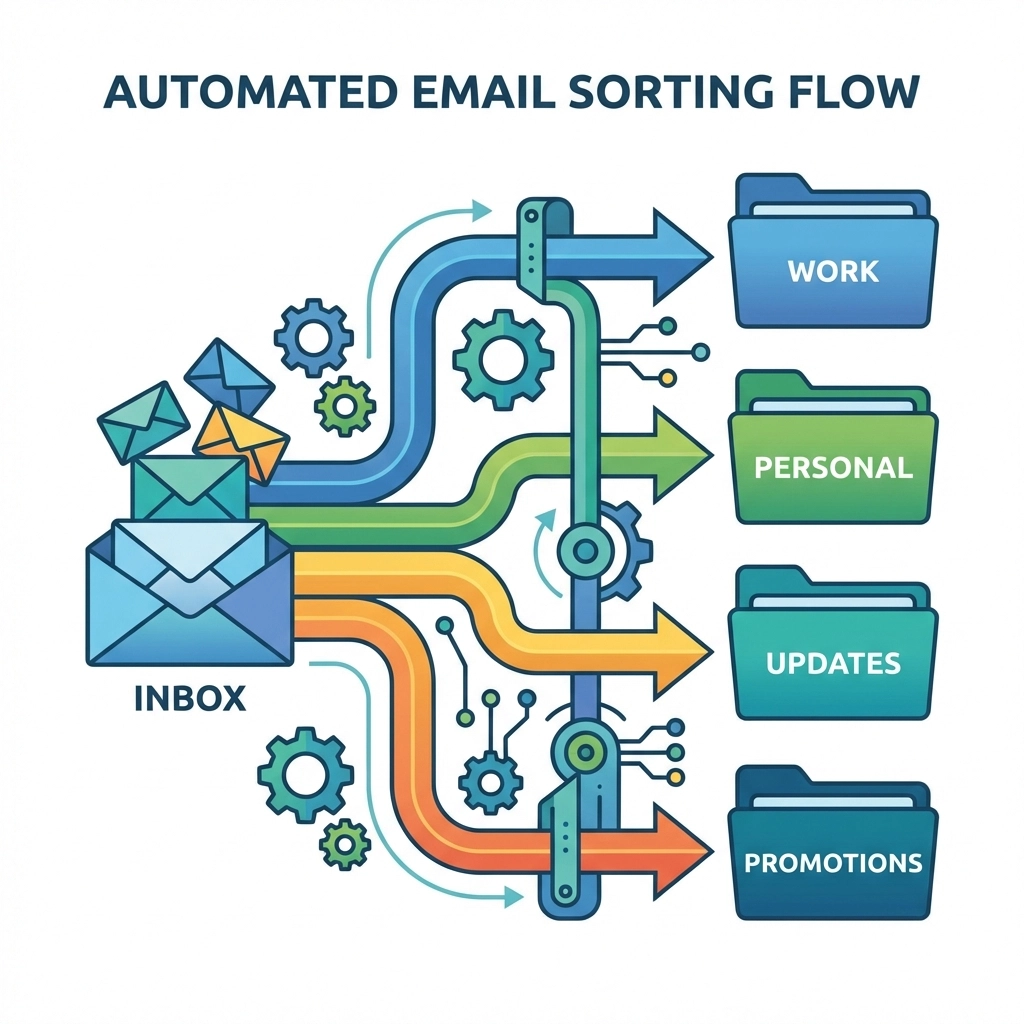
Practical examples for Northern Michigan businesses:
- Automatically move all invoices to an "Accounting" folder
- Flag emails from key seasonal customers during busy periods
- Route newsletter subscriptions to a "Read Later" folder
- Send supplier communications directly to your "Vendors" category
The beauty of rules is they work 24/7. Set them up once, and they'll keep your inbox organized whether you're at the office in downtown Petoskey or working remotely from your cabin up north.
2. Embrace Archive and Categories Over Endless Folders
If your Outlook looks like a filing cabinet with dozens of folders, it's time for a simpler approach. Instead of creating a folder for every project or client, use Outlook's Archive feature combined with Categories.
Here's the game-changing approach:
- Archive emails to remove them from your inbox while keeping them searchable
- Use Categories to label emails with colors and keywords
- Search instead of hunting through folder hierarchies
This system supports what productivity experts call "Inbox Zero", keeping your main inbox clean and actionable. Your archived emails remain fully searchable, so finding that important contract from last summer takes seconds, not minutes.
Pro tip: Create categories like "Urgent," "Follow Up," "Waiting For Response," and "Project Work." Color-coding makes it easy to scan your inbox at a glance.
3. Let Focused Inbox Filter What's Actually Important
Outlook's Focused Inbox uses artificial intelligence to learn your email patterns and automatically separate important messages from the noise. Over time, it gets remarkably good at knowing which emails need your immediate attention.
To enable Focused Inbox:
- Go to View > Show > Focused Inbox
- Watch as Outlook creates two tabs: Focused and Other
- Train the system by moving emails between tabs as needed
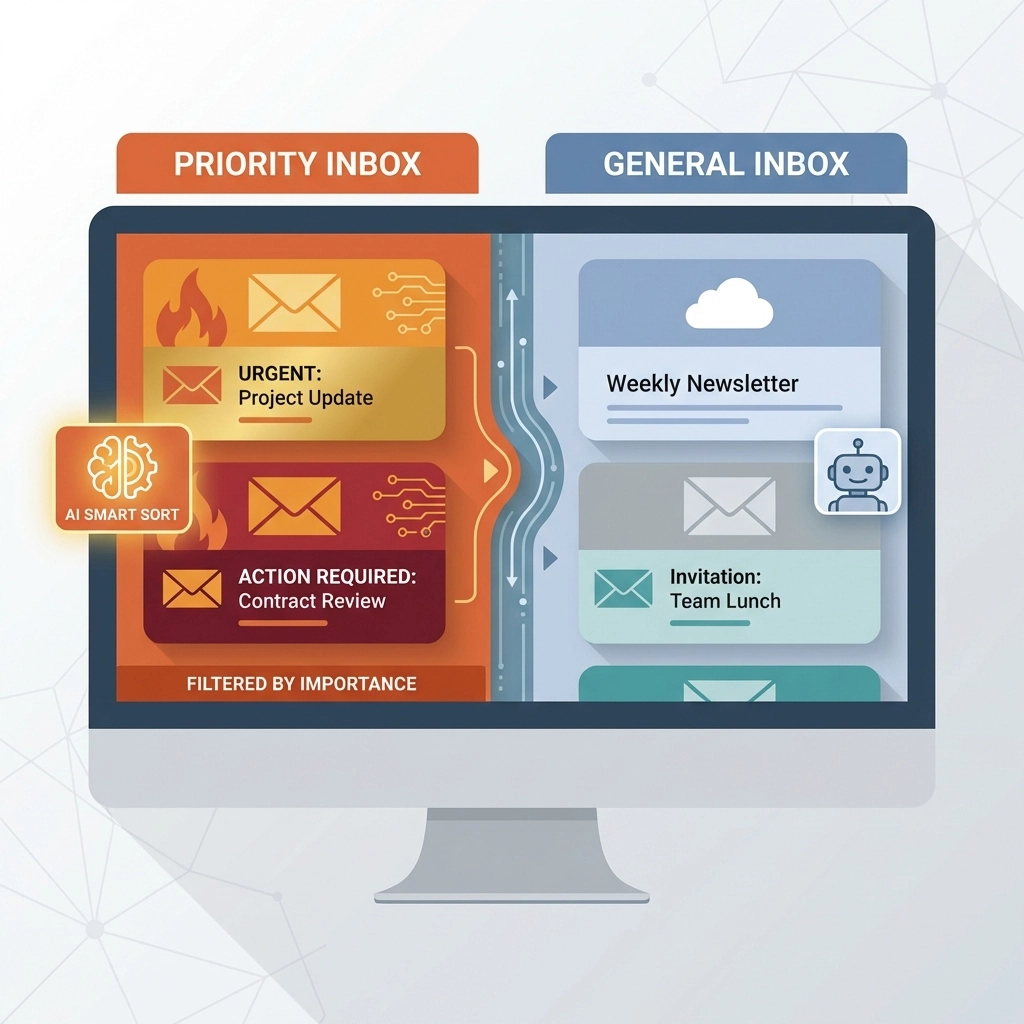
This feature is particularly valuable during Northern Michigan's busy seasons. When customer inquiries spike during summer tourism or holiday periods, Focused Inbox ensures you never miss the urgent messages while keeping promotional emails and newsletters out of your way.
4. Schedule Your Email Processing Time
Here's a hard truth: constantly checking email throughout the day destroys your productivity. Every notification pulls your attention away from important tasks, and it takes time to refocus.
Instead, try this approach:
- Check email 2-3 times daily at scheduled intervals
- Turn off email notifications during focused work time
- Use your phone's Outlook app for truly urgent communications only
Suggested schedule for busy Northern Michigan business owners:
- Morning: 30 minutes after arriving at the office
- Midday: 15 minutes after lunch
- End of day: 30 minutes before leaving
This approach keeps you responsive without making you a slave to your inbox. Your customers will still get timely responses, but you'll accomplish more meaningful work during the day.
5. Transform Emails Into Actionable Tasks
Your inbox shouldn't double as your task manager. When emails require action, convert them into proper tasks with due dates and reminders.
Here's how to do it effectively:
- Flag important emails that need follow-up
- Set due dates for time-sensitive actions
- Add detailed reminders with context about what needs to be done
- Share task lists with team members for collaborative projects
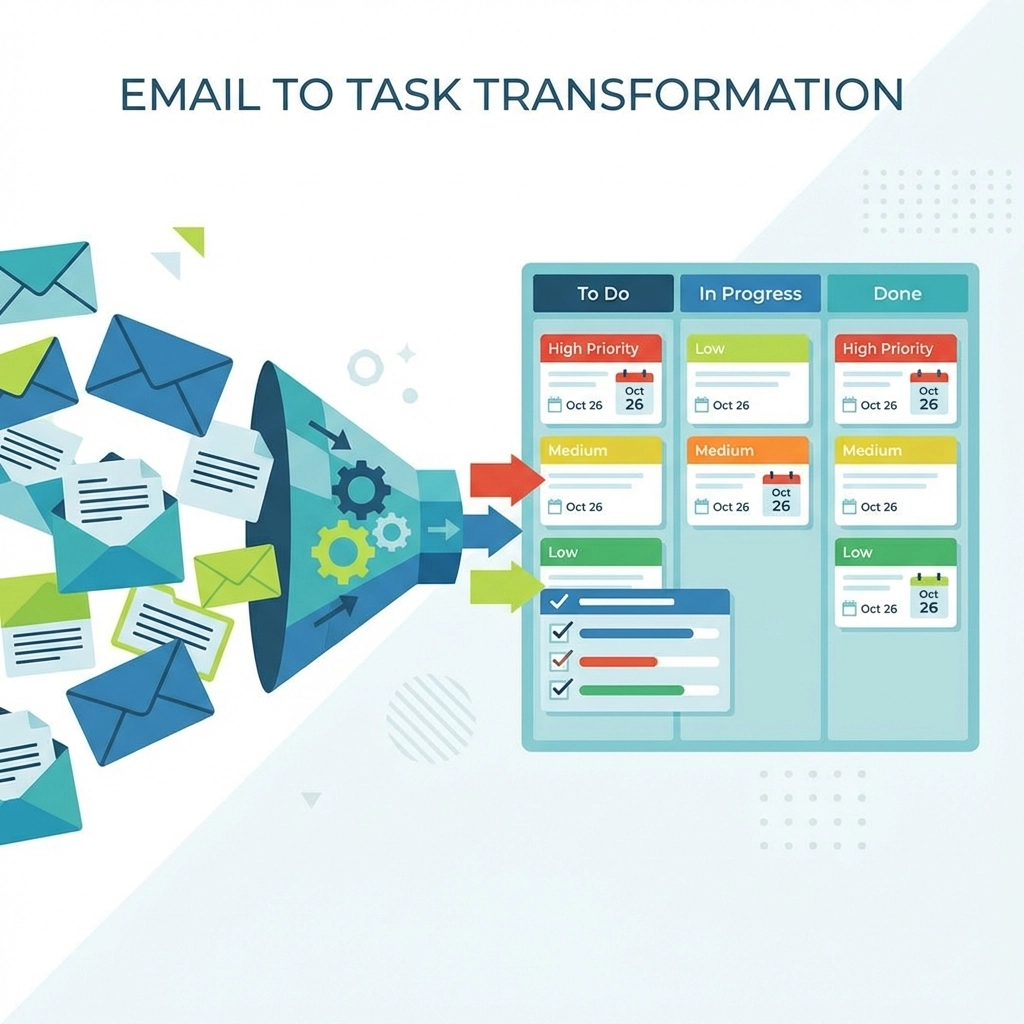
This system prevents important actions from getting buried in email threads. Whether you need to follow up with a potential client in Alpena or coordinate a project with your Gaylord location, everything stays visible and trackable.
6. Create Templates for Common Responses
If you find yourself typing similar responses repeatedly, it's time to create email templates. This is especially valuable for businesses that handle frequent customer inquiries or have standardized processes.
Common template scenarios:
- Welcome messages for new clients
- Meeting confirmation emails
- Service inquiry responses
- Project update notifications
- Holiday hour announcements
To create a template:
- Compose your standard email
- Go to File > Save As > Outlook Template
- Access saved templates through Home > New Items > More Items > Choose Form
Templates ensure consistency in your communications while saving precious time. A response that took five minutes to craft now takes 30 seconds to customize and send.
7. Master Advanced Search and Smart Snoozing
Outlook's search capabilities are incredibly powerful once you know how to use them properly. Instead of scrolling through months of emails, use advanced search operators to find exactly what you need.
Powerful search techniques:
- From: [sender name] – Find all emails from specific people
- HasAttachment: yes – Locate emails with files attached
- Category: [category name] – Filter by your custom categories
- Received: last week – Time-based filtering
For emails you're not ready to handle immediately, use the Snooze feature. Click the snooze button to temporarily remove emails from your inbox and have them reappear when you're ready to deal with them.
This is perfect for seasonal businesses dealing with advance bookings or suppliers who send quotes you'll need to review next quarter.
Implementation Strategy: Start Small, Build Momentum
Don't try to implement all seven tips at once. Start with one or two that address your biggest pain points, then gradually add more as these become habits.
Week 1-2: Set up basic email rules and enable Focused Inbox
Week 3-4: Implement scheduled email processing times
Week 5-6: Create your first email templates and task conversion system
Making It Work for Your Northern Michigan Business
Whether you're managing a retail operation in downtown Petoskey, coordinating between multiple locations in Gaylord and Cheboygan, or running a seasonal business that serves Alpena and the surrounding areas, these Outlook strategies adapt to your specific needs.
The key is consistency. Once you establish these systems, they'll serve your business whether you're dealing with summer tourist inquiries, coordinating winter operations, or managing the year-round demands of Northern Michigan business life.
Ready to Transform Your Email Experience?
Implementing these seven Microsoft Outlook strategies will give you back hours every week: time you can spend growing your business, serving customers better, or simply enjoying what Northern Michigan has to offer.
If you're feeling overwhelmed by managing Microsoft 365 for your business, you're not alone. Many Petoskey, Gaylord, Cheboygan, and Alpena businesses find that working with experienced IT support professionals helps them unlock the full potential of their technology investments.
Want to see how these strategies could work specifically for your business? We'd love to help you optimize your Microsoft 365 setup and discover even more time-saving opportunities tailored to your unique needs.